 English
home  products resource tuner tutorials
Resource Editor: How to Edit Text Strings in EXE Files
Strings stored in String tables and Message tables are primarily used as text in message boxes, list boxes, combo boxes, tooltips, and statusbars. Stingtable strings can also contain control characters and placeholders (e.g., %d, %s).
Stringtable resources specify a group of one or more null-terminated strings each limited to a maximum of 4,097 characters. Each string comprises an entry in a given stringtable and corresponds with a unique ID that identifies it.
String IDs cannot be edited. These values are hard coded into the target file. Changing them is likely to cause the modified program to crash.
Editing Strings with Resource Tuner
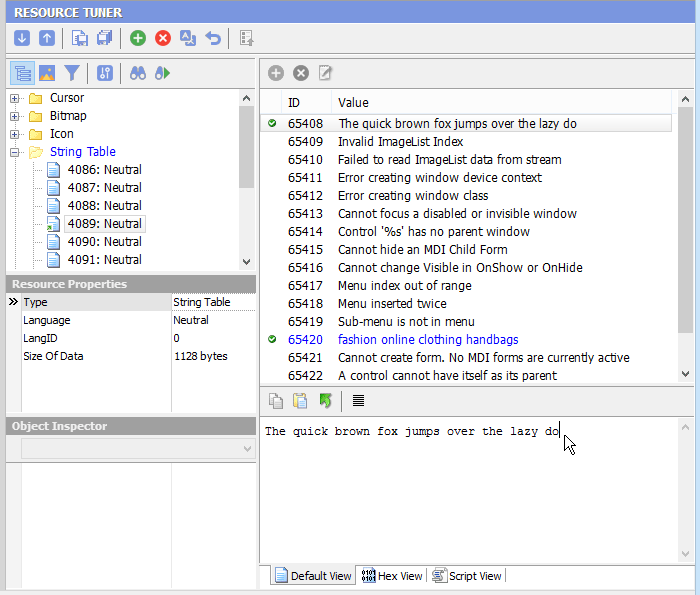
1. Expand the String Table (or Message Table) folder within the Resource Tree view and select the specific string table resource you wish to edit.
2. Select the string entry from the table and make any desired changes in the edit box. You can also copy (Ctrl+C) or paste text from clipboard (Ctrl+V). A missing string or improperly altered placeholder string ('%s') can cause a modified program to crash at run time. So be careful.
Remember, any changes made can be restored before exiting Resource Tuner by using the 'Restore Resource Data'  button.
3. Once you're done editing, select 'File' → 'Save File' or use the [Ctrl+S] combination to save the modifications to the target file.
Changing Multiple Strings with Resource Tuner Console
When dealing with the need to update existing strings or add new ones for several hundred files, the most effective approach is to utilize a batch file. Whenever large numbers of files have to be processed or to be accessible through scripting / batching, you need Resource Tuner Console.
Start Tuning Your Applications Now!
 Give Resource Tuner a trial run for 30 days free! Once you try it, we think you will find it hard to go back to other resource hacking utilities. For maximum editing and inspecting power, purchase a Personal license now for $49.95. The Business license is available for $89.95.