 English
home  products resource tuner tutorials
Resource Editor: How To Delete A Resource
Resource Tuner lets you delete unwanted resources from executable files. However, "If in doubt don't touch " is a good rule of thumb.
Deleting A Resource Item
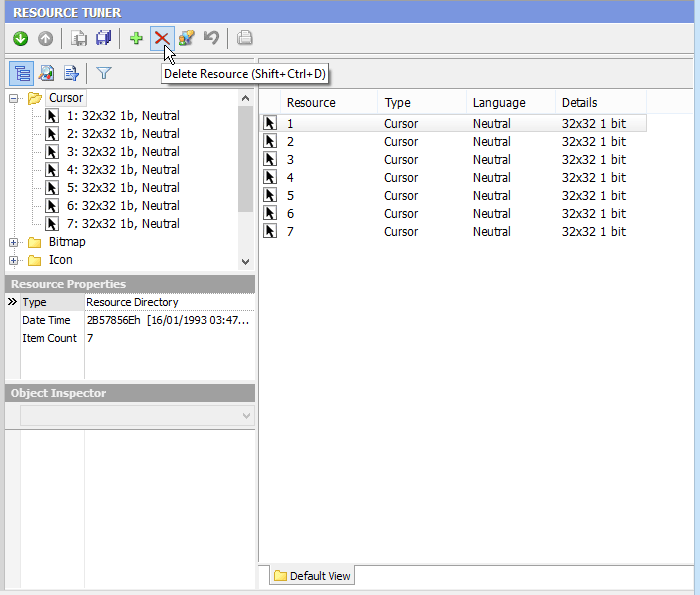
1. Select the item you wish to delete in the Resource Tree view. Press the 'Delete Resource' button  on the toolbar or use the hotkey combination [Shift+Ctrl+D].
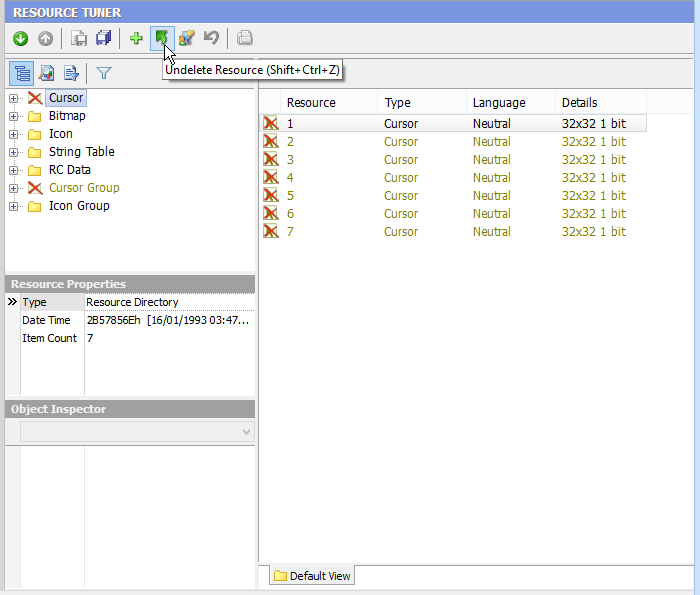
2. Deleted items will be indicated by a red  marker. Changes become permanent only after you save them to the file.
Rollback Feature: To restore deleted items, use the 'Undelete Resource' button  on the toolbar or the hotkey combination [Shift+Ctrl+Z].
3. Once you're done editing, select 'File' → 'Save File' or use the [Ctrl+S] combination to save the changes made to the target file.
Deleting Multiple Resources with Resource Tuner Console
If you need to delete existing resources, or add new ones for several hundred files, you are more than likely going to want some way to implement this with a batch file. Whenever large numbers of files have to be processed or to be accessible through batching, you need Resource Tuner Console.

Start Tuning Your Applications Now!
 Give Resource Tuner a trial run for 30 days free! Once you try it, we think you will find it hard to go back to other resource hacking utilities. For maximum editing and inspecting power, purchase a Personal license now for $49.95. The Business license is available for $89.95.