 English
home  products resource tuner tutorials
How to Edit a Dialog Box
Resource Tuner lets you visually modify a selected dialog and its controls. You can resize, redesign, and reposition dialogs or simply change their font properties (type face and size) to suit your wishes. Size and position changes to dialog boxes and child controls are automatically reflected in the resource script.
Anything that you see on a dialog can be moved or resized
1. Expand the Dialog folder found in the Resource Tree view, and select the dialog resource item you want to edit.
It is important to note that that programs compiled using Delphi do not commonly have Dialog folders but store this information in the folder named RCData. See also:  How to edit dialogs in programs written in Delphi
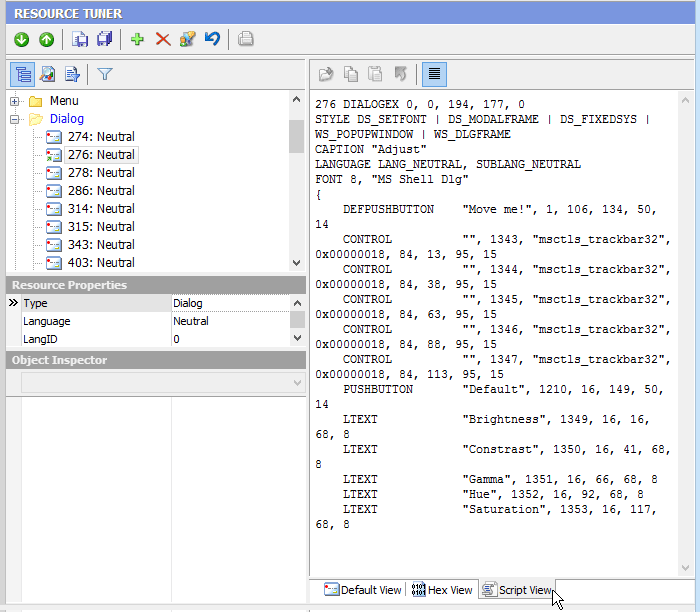
2. You will see a preview of what the dialog box looks like. To view the decompiled script behind the dialog box in either text or hex format, choose the Script View or Hex View tab.
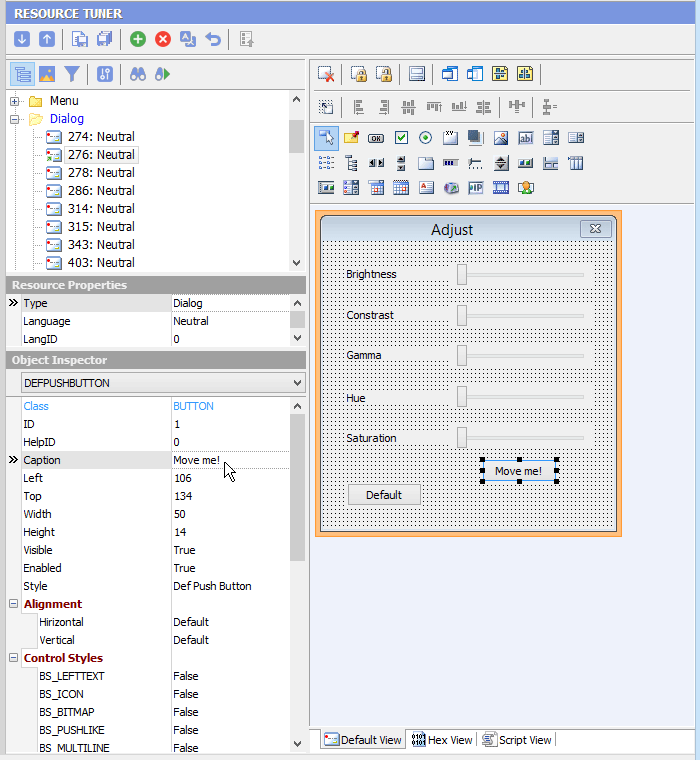
Anything that you see on a dialog box can be moved or resized. Select a control by clicking it in the displayed dialog. Alternatively, the Tab or Shift-Tab keys can be used to select next or prior controls respectively. The selected control will show resizing handles. You can numerically adjust a control position and size in the Object Inspector or drag it with a mouse.
To add a new control, select one of the toolbar buttons with the most commonly used controls and click on the dialog. The top-left corner of the control to be added will default to the point at which the dialog was clicked.
The Object Inspector allows for changing the Style and ExStyle parameters of a selected control:
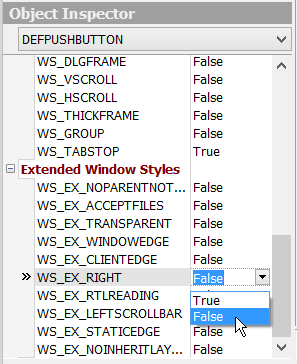
You can set/reset the extended style parameters for a dialog box and its control items (e.g. "right-to-left" reading order for Hebrew/Arabic script as well as "right-aligned text").
3. As you rearrange and resize objects, the resource script related to the objects changes accordingly.
4. Once you're done editing, select 'File' → 'Save File' or the [Ctrl+S] combination to save the modifications to the target file. Any changes made can be reverted before exiting Resource Tuner.
Dialog IDs cannot be edited. These values are hard coded into the target file. Changing them is likely to cause the modified program to crash.
Start Tuning Your Applications Now!
 Give Resource Tuner a trial run for 30 days free! Once you try it, we think you will find it hard to go back to other resource hacking utilities. For maximum editing and inspecting power, purchase a Personal license now for $49.95. The Business license is available for $89.95.