 English
home  products resource tuner tutorials
How to Replace Icon of EXE File
Exe Icon Replacement
Resource Tuner is an ideal choice for modifying icons in Windows executable files, whether it's the exe file's icon or the default menu icons. However, it's essential to remember that Windows executable files contain multiple icons grouped together.
These icons are stored within EXE or DLL files in Icon Groups, and each Icon Group can consist of several icon images, each with distinct sizes and color depths. Common icon sizes include 16, 32, 48, and 256 pixels square, while color depths vary between 32-bit (24-bit with 8-bit alpha channel), 8-bit (256 colors), and 4-bit (16 colors).
Here's an example of an Icon Group found in the Notepad application:
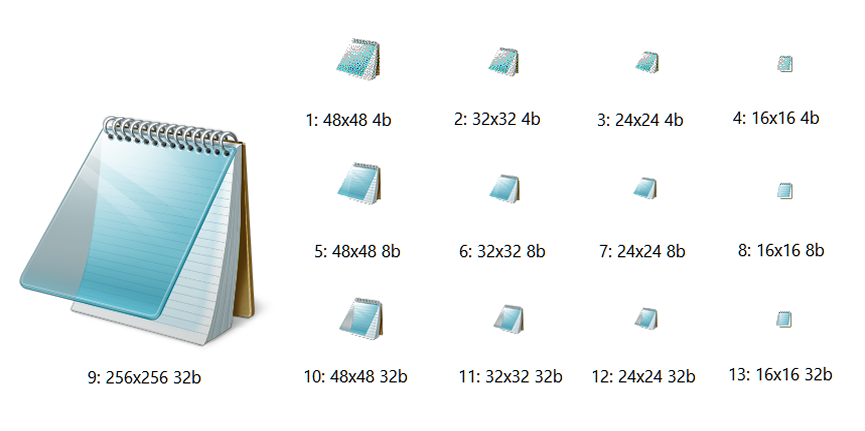
When replacing icons and cursors, make certain that the replacement sources match the size and color depth as the original. For instance, a 16x16 4-bit icon cannot be swapped with a 32x32 8-bit icon.
If you encounter a mismatch error while attempting to change an icon that appears to have the same size and bit depth, it indicates that the source icon likely has a different color depth (24-bit and 32-bit icons can look very similar).
Replacing EXE File Icons with Resource Tuner
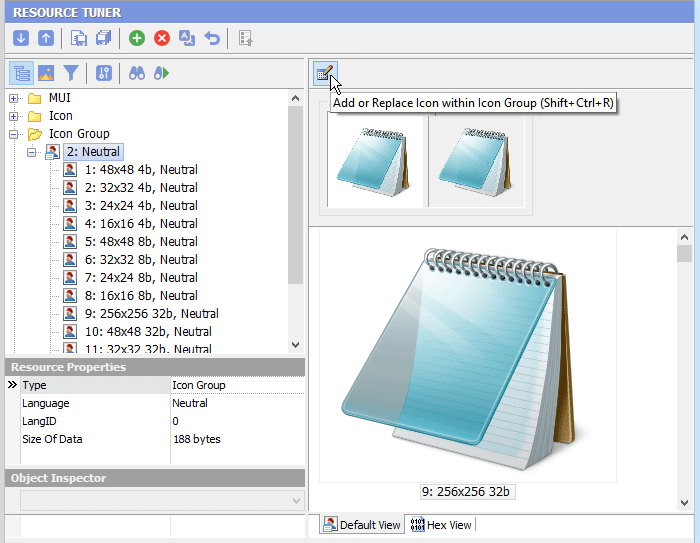
1. Open your EXE file in Resource Tuner and expand the Icon Group folder.
2. Select the icon or the icon group you want to change and click the 'Add or Replace Icon within Icon Group' button in the button bar as illustrated below.
3. You wil see the following dialog. Click the 'Open' button and select your desired icon file on your disk. The file format should be either .ico or .png.
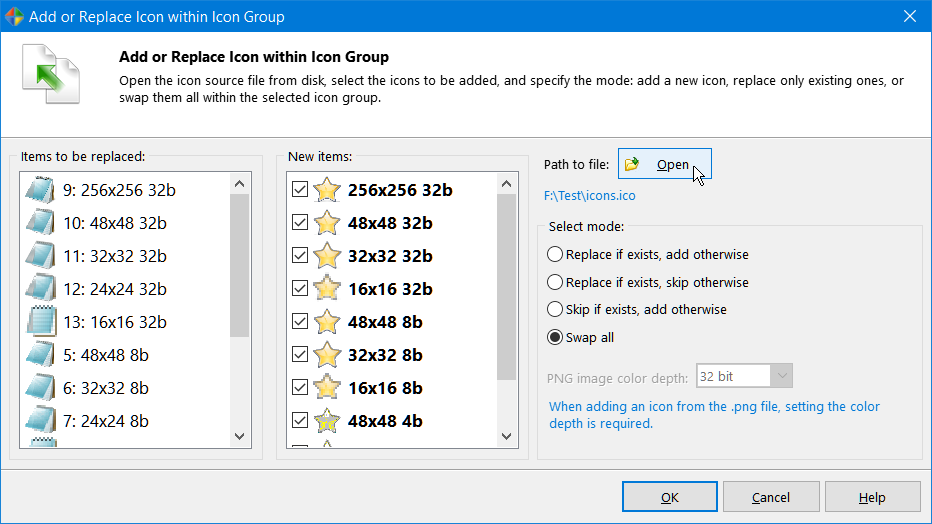
If you choose a .png file, ensure that the image size is not larger than 256 pixels in width and 256 pixels in height. Larger sizes may not be compatible with the application.
4. Check only those items in the 'New items' list you want to be added, select the replacement mode and press the 'OK' button.
5. Select 'File' → 'Save File' to save the changes made to the target file.
Changing Multiple Icons with Resource Tuner Console
When dealing with the need to update existing icons or add new ones for several hundred files, the most effective approach is to utilize a batch file. Resource Tuner Console becomes essential in scenarios where large numbers of files must be processed or accessed through batching.
Start Tuning Your Applications Now!
 Give Resource Tuner a trial run for 30 days free! Once you try it, we think you will find it hard to go back to other resource hacking utilities. For maximum editing and inspecting power, purchase a Personal license now for $49.95. The Business license is available for $89.95.