 English
Flexible Hex Editor
Getting Started with FlexHex
FlexHex integrates with Windows File Explorer, enabling efficient drag-and-drop functionality for quick file access. Simply open files from Explorer or drag-and-drop them onto FlexHex. Upon loading a binary file in FlexHex, the primary Hex Workshop Window appears, displaying the hex editor view for each loaded file.
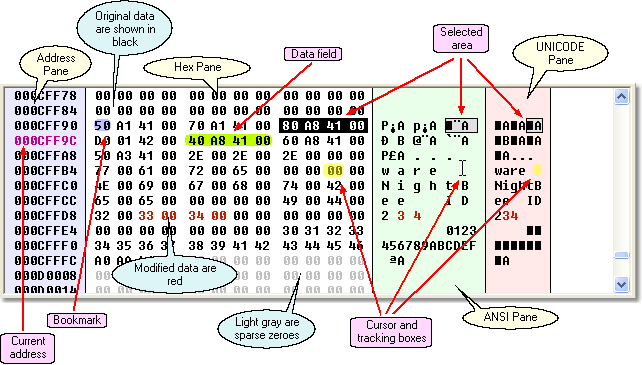
The leftmost Address Pane presents a list of hexadecimal addresses, where each address designates the starting byte position on the line. The active address is highlighted in a distinct color, indicating the current input caret position.
The Hex Pane, along with the optional ANSI and UNICODE character panes, displays the data being viewed and edited. To edit data in the hex editor, position the cursor over the byte you wish to edit. FlexHex keeps an unlimited Undo list. This list keeps track of all changes made, enabling you to undo any event within the list.
FlexHex fully supports drag-and-drop operations. You can easily select a data block and drag it to another location or even to a different application.
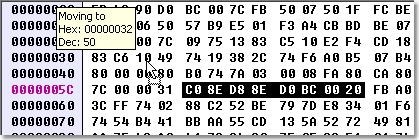
Go ahead, experiment away! FlexHex features a powerful unlimited Undo and Redo system, with clear action names to help you.
Modification Tracking Tools
The File Map displays the positions and sizes of file areas, providing a graphical representation of the Area Pane. This feature is available for existing files only or after the first 'Save' command.

An Area in FlexHex refers to a block of data resulting from an editing operation. When a file is initially opened, it is a single area containing the original data. Any changes made within the file, such as altering a byte in the middle, transform the layout into three distinct areas: the initial unmodified data preceding the altered byte, the modified area spanning one byte, and the unmodified data from the changed byte to the end of the file.
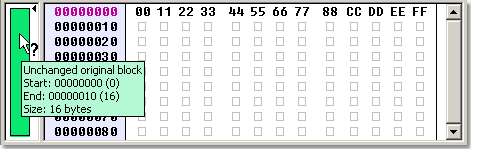
Now switch the editor to insert mode (check the status bar for the current editing mode), navigate to address 00000004 (right before byte 44), and enter F0. This operation inserts byte F0, shifting the data down, and the File Map updates to display the new file layout:
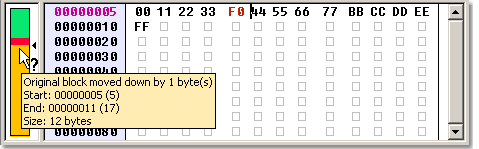
The Area Pane tracks all modifications made to the stream being edited and lists all the stream areas.
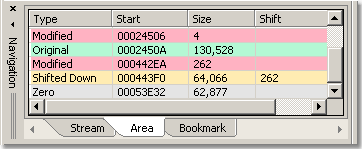
Clicking an address in the Start column moves the caret to the beginning of the corresponding area. Clicking the area Size field selects the corresponding area. If an area has been moved, clicking the Shift field moves the caret to its original position.
Hot Tracking the Changes
A common use case for a hex editor involves debugging a program while monitoring changes in the output file at each step. However, in most hex editors, the displayed file in the editor window remains unchanged even when modifications are made. This occurs because the editor isn’t aware of the file’s modifications, requiring a manual reload to observe the changes. This limitation applies to the majority of hex editors, with one notable exception: FlexHex.
FlexHex eliminates the need for repetitive file reloading by automatically detecting any modifications made to the file and promptly updating the Edit window. This feature, called Hot Tracking, is automatically activated for any file opened in read-only mode.
Status Bar
The FlexHex status bar contains several useful indicators:

Progress Indicator
When FlexHex performs a lengthy operation, this field shows the operation’s progress.
Stream/Selection Size Indicator
If there is an active selection, this indicator shows the size of the selected area. If no data is selected, it displays the size of the stream (i.e. file or drive) being edited.
Shift Indicator
While FlexHex is in Insert mode, deleting or adding data causes the remaining stream to shift up or down. This action could potentially corrupt a logical or physical drive, as many binary files contain position-dependent data fields. To mitigate this risk, the Shift Indicator serves as a warning whenever any section of the original stream relocates due to an editing action.
 All unchanged original data blocks retain their original position.
 At least one block of the original data has been moved.
Sparse Indicator
The grayed indicator (as depicted in the screenshot above) signifies that the stream is non-sparse. In instances where you modify a very small locked file, you might see the indicator RESIDENT within this field. This means that NTFS retains the file content within the file’s MFT (Master File Table) record, thereby avoiding any occupation of disk space.
Modification State
The three possible states for this indicator are UNCHANGED, MODIFIED, and READ-ONLY, which are self-explanatory.
Insertion Mode
In the default Overwrite mode the data being entered overwrites the existing data at the current position. When the Insert mode is active, the program moves the data at the current position to make place for the text being entered. Pressing the Insert key toggles the Insert/Overwrite mode.
Settings
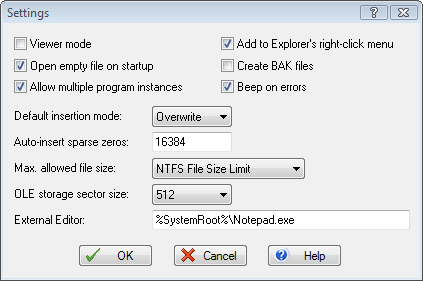
The Tools / Settings menu command lets you specify the program settings and defaults.
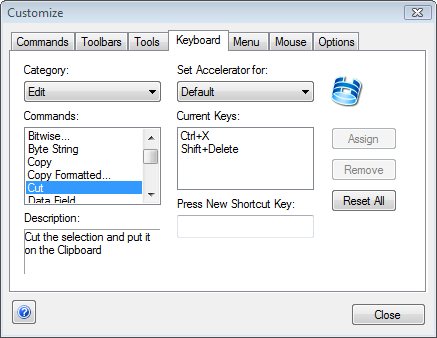
The Tools / Customize command lets you fully customize the FlexHex user interface the way you want it.
Get Started with a 30-Day Free Trial

This software has no disabled features. Try out the full functionality of this hex editor with many advanced functions.